Prerequisites: Before you can add a new administrator, you will need to gather the following information about your new administrator:
Email address
Wallet address (must be a wallet from a wallet provider that can be used to log in to blockchain apps such as Metamask, Rabby, etc.)
Adding a Safe signer? If your Coinbase Token Manager account is managed by a Safe, any new signer wallets within the Safe will typically be automatically added within 24 hours of adding the new signer as an owner.
Please note that for any accounts managed by a Safe, you are unable to manually create a new stakeholder with owner access via the Coinbase Token Manager platform. All stakeholders with owner access must first be a signer on the Safe to be automatically added via our Safe integration.
Create an administrator in Coinbase Token Manager
Follow these steps to add a new administrator to your Coinbase Token Manager account:
Go to the Stakeholders page in Coinbase Token Manager.
Select the Create stakeholder button.
In the pop‑up, enter the stakeholder’s identifying information.
Set the Stakeholder type to Admin, then choose the appropriate permission level (see the Administrator role permissions article for details).
Click Save to create the new administrator.
Once saved, the new administrator will appear in your stakeholder list and will be able to access Coinbase Token Manager according to their assigned permissions.
Occasionally, you may need to adjust an administrator’s permissions (for example, to give them more or less access within Coinbase Token Manager). This article walks through how to update an existing admin’s permission level.
If you need a detailed table of what each admin role can do, refer to your administrator role permissions reference for Coinbase Token Manager.
1. Go to the Stakeholders page
Sign in to Coinbase Token Manager with an account that has permission to manage administrators.
Navigate to the Stakeholders page.
2. Find the administrator to update
In the stakeholder list, locate the administrator whose permissions you want to change.
Confirm you’ve selected the correct stakeholder (check name, email, and any other identifying details).
3. Open the Edit stakeholder view
On the right side of the stakeholder’s row, click the three‑dot (⋯) menu.
Select Edit stakeholder.
This opens the edit panel for that administrator.
4. Change the permission level
In the edit panel, locate the permission level or role field.
Choose the new permission level from the available options (for example: Owner, Admin, View‑only Admin, etc., depending on your configuration).
Review the change to ensure it matches the level of access you intend to grant or remove.
5. Save and confirm
Click Save.
A confirmation message should appear at the bottom of the window indicating that the stakeholder’s permissions have been updated.
Optionally, refresh the Stakeholders page and re‑open the stakeholder to confirm the new role is displayed correctly.
Follow these steps to remove an administrator from your Coinbase Token Manager account.
1. Go to the Stakeholders page
Sign in to Coinbase Token Manager with an account that has admin rights.
Navigate to the Stakeholders page (your stakeholder list).
2. Find the administrator to remove
In the stakeholder list, locate the stakeholder you want to remove as an administrator.
Verify that you’ve selected the correct person (name, email, and any other identifying details).
3. Delete the administrator stakeholder
On the right side of the stakeholder’s row, click the three‑dot (⋯) menu.
Select Delete stakeholder.
In the confirmation pop‑up, review the details and click Delete to confirm.
Once deleted, this stakeholder will no longer appear in your stakeholder list and will no longer be able to access Coinbase Token Manager as an administrator.
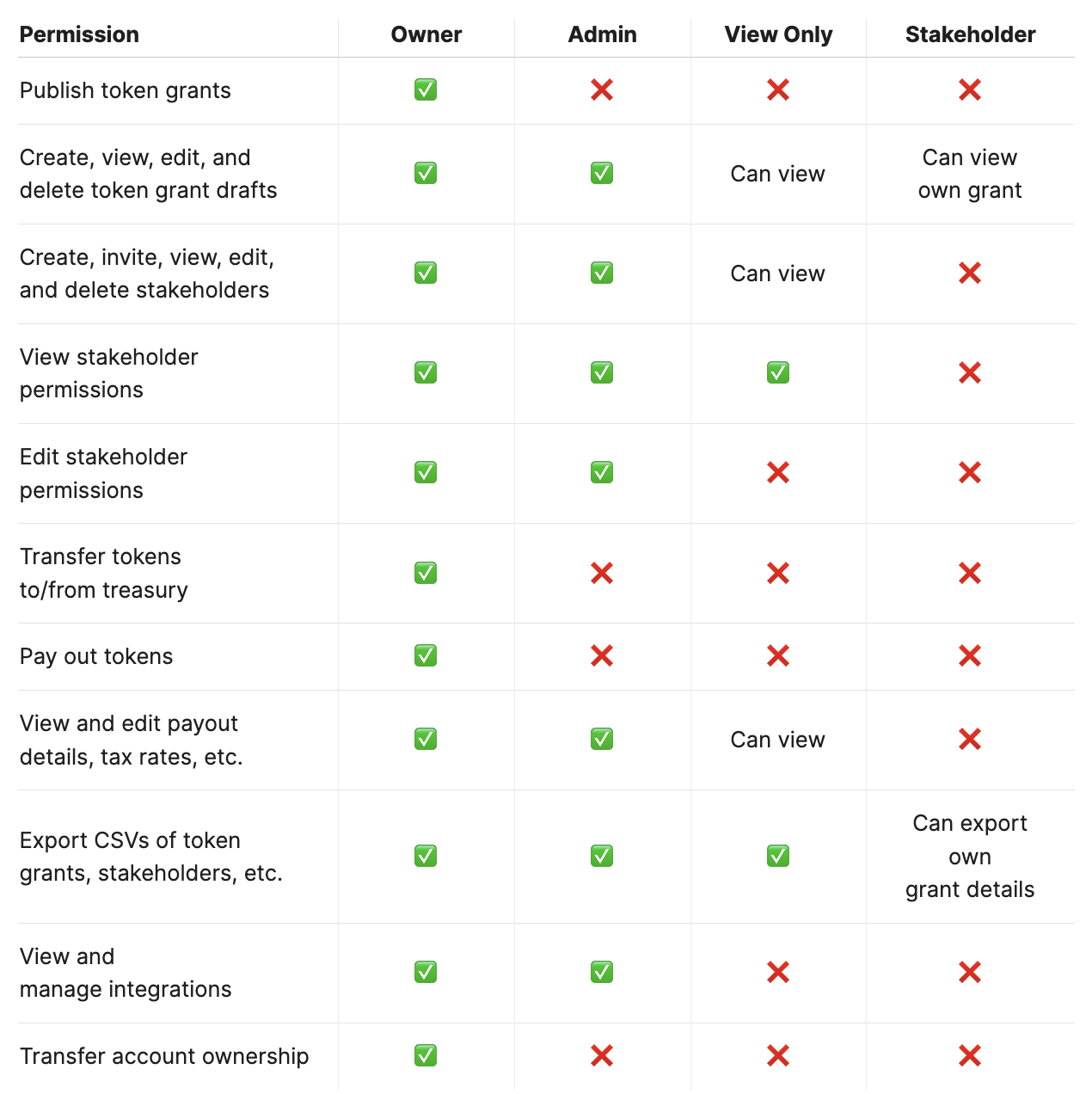
Coinbase Token Manager supports multiple roles with different levels of access:
Owner – Full administrative control, including publishing grants, managing stakeholders, managing integrations, and transferring account ownership.
Admin – Day‑to‑day administrative access for managing grants, stakeholders, payouts, and reporting, but cannot publish token grants or transfer account ownership.
View Only – Read‑only access to core data (grants, stakeholders, payout details, and reports) without the ability to make changes or move tokens.
Stakeholder – Limited to their own grants and related export data; they cannot administer the company account.
The table below summarizes what each role can do.
My Coinbase Token Manager account is managed by a Safe and I’ve added a new signer. Will the new signer automatically become an owner in Coinbase Token Manager?
Yes. When your Coinbase Token Manager account is managed by a Safe, the platform periodically checks the Safe’s signer list. If a new signer has been added to the Safe, that signer is automatically added to your Coinbase Token Manager account with the appropriate owner‑level access.
My Coinbase Token Manager account is managed by a Safe and I’ve removed a signer. Will Coinbase Token Manager automatically remove that signer as an owner?
No. When you remove a signer from the Safe, Coinbase Token Manager does not automatically remove that person as an owner in the app.
To fully remove their admin access:
Sign in to Coinbase Token Manager with an account that can manage administrators.
Go to the Stakeholders page.
Find the former signer’s admin profile.
Update or remove their admin role (for example, by downgrading or deleting the admin profile).
Even though they may still appear as an owner in Coinbase Token Manager until you update their role, they cannot complete any on‑chain transactions once you have removed them as a signer on the Safe. The Safe itself enforces who can sign and execute transactions.
If you need immediate assistance, please contact our support team directly at:
tm-support@coinbase.com
References to third-party services are provided solely for your convenience and do not constitute an endorsement, approval, or recommendation by Coinbase. Coinbase does not control and is not responsible for any third-party services, websites, or content.
If you don't see what you're looking for in our support documentation, you can request a resource to be made by our support team using this form.