You can log in to Coinbase Token Manager using:
A self‑custody wallet (e.g., MetaMask, Rabby, Coinbase Wallet, other EVM wallets)
A hardware wallet connected via a browser extension
A Gnosis Safe signer wallet (for Safe‑managed organizations)
Your email address (for passwordless email login)
This article summarizes the main paths and links out to more detailed flows where needed.
If you see errors or the login flow seems “stuck,” use the Reset your login connection link at the bottom of the login prompt before trying again.
Before you log in
Choose the correct network
On the login screen, select the network that matches your token grant or company setup.
If you’re unsure which network to use, contact your token or grant administrator.
Make sure your wallet extension is installed (for wallet‑based login)
Install the browser extension for your wallet provider (e.g., MetaMask, Rabby, Coinbase Wallet) before attempting to connect.
Use the right login method for your role
Admins / Owners / Safe signers typically log in with a wallet (or a wallet + Safe flow).
Stakeholders may log in with a wallet or email, depending on how their profile is configured.
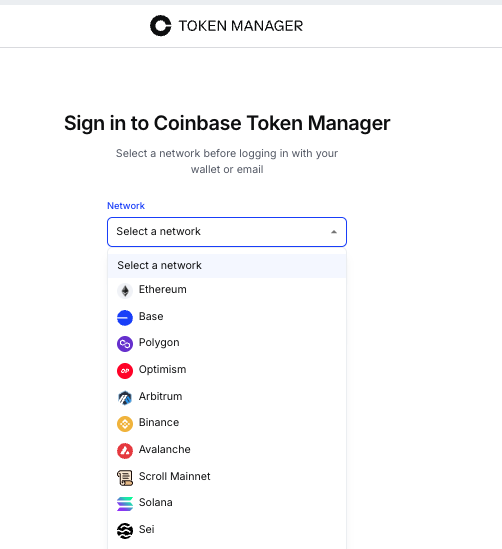
Use this path for browser‑based self‑custody wallets such as MetaMask, Rabby, Coinbase Wallet, or similar.
Go to the Coinbase Token Manager login page.
Select the appropriate network.
Click Log in.
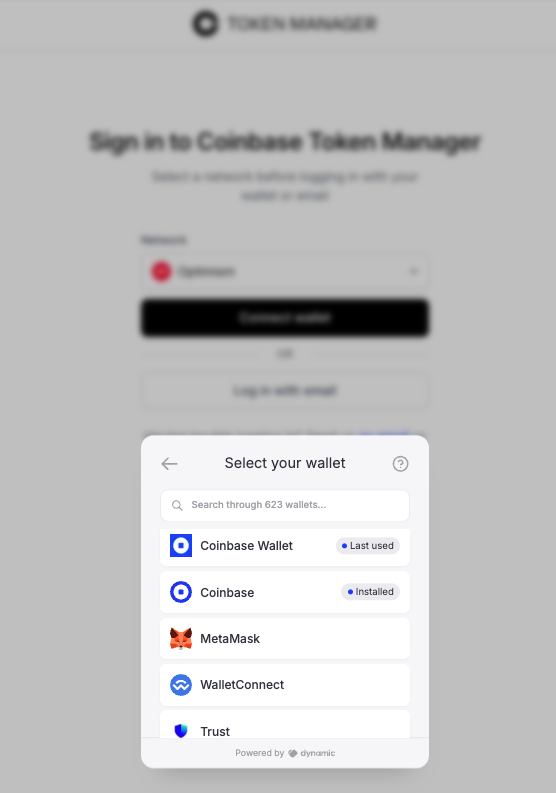
Choose your wallet provider from the list.
If you don’t see it, click View all wallets and search for your provider.
When your wallet extension prompts you, review the message and sign to authenticate.
The sign‑in message does not consume gas and is required only once per session.
Coinbase Token Manager will process your sign‑in and redirect you to:
Your Portfolio view (for stakeholders), or
Your administrator dashboard (for admins/owners).
If you experience issues, reset your login connection from the prompt, then retry with your wallet extension.
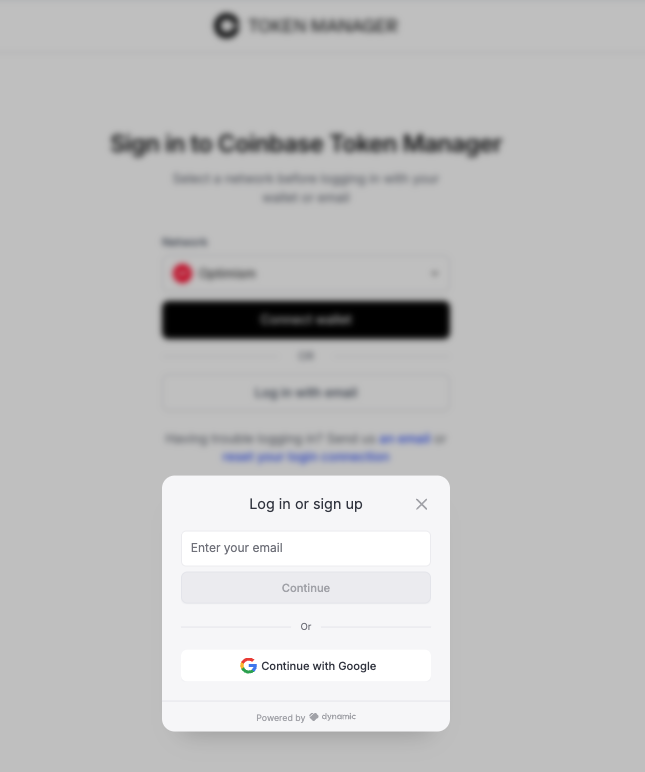
Use this path if your stakeholder profile is configured with an email login and you’re not using a wallet extension.
Go to the Coinbase Token Manager login page.
Select the appropriate network.
Click Log in.
Enter the email address associated with your profile and click Continue.
Check your inbox for a one‑time password (OTP) email from Coinbase Token Manager.
Copy the OTP and paste it into the login prompt.
Submit the code; Coinbase Token Manager will process your sign‑in and show your Portfolio view with any active token grants.
If you see errors or repeated failures:
Use Reset your login connection on the login prompt, and
Ask your token grant administrator to confirm that your email address is correctly attached to your stakeholder profile.
If you use a hardware wallet (for example, a Ledger device), the most reliable flow is to connect it through a supported browser extension (e.g., Rabby, MetaMask) and then log in with that extension.
Connect your hardware wallet to your computer and unlock it.
Open your wallet‑compatible browser extension (e.g., Rabby).
In the extension, choose Connect hardware wallet and follow the steps to import your addresses.
Select the correct hardware‑backed address in the extension.
Go to the Coinbase Token Manager login page, select the correct network, and click Log in.
Choose the extension that is linked to your hardware wallet.
When prompted in the extension:
Start the signing process.
If needed, enable any required features such as blind signing in your hardware wallet settings.
Approve the login message on your hardware device.
Once the signature is accepted, Coinbase Token Manager will finish login and show your Portfolio or admin dashboard.
If you see “Transaction rejected” or similar errors, retry from your extension and confirm that the correct app/network is open on your hardware device.
If your organization uses a Gnosis Safe to manage its Coinbase Token Manager account:
You’ll log in as a Safe signer using the wallet or login method associated with your signer wallet (for example, MetaMask + Safe, Rabby + Safe, etc.).
Make sure you follow your existing Safe signer process so Coinbase Token Manager recognizes you as an authorized signer/admin.
At a high level:
Connect the same wallet you use as a Safe signer (via extension).
Use the Log in with your wallet flow described above.
Once authenticated, Coinbase Token Manager will treat you as an admin/owner according to your Safe configuration and permissions.
If you’re unsure which wallet or login method is tied to your Safe signer role, contact your organization’s administrator before proceeding.
Login stuck or error messages
Use Reset your login connection at the bottom of the login prompt.
Close and reopen your browser, then try again.
Wrong network selected
Make sure the network in Coinbase Token Manager matches the one your grants are configured for.
If you’re unsure, ask your token grant administrator.
Wallet not detected
Confirm your wallet extension is installed and unlocked.
Check that your browser is not blocking pop‑ups or extension windows.
If you need immediate assistance, please contact our support team directly at:
tm-support@coinbase.com
References to third-party services are provided solely for your convenience and do not constitute an endorsement, approval, or recommendation by Coinbase. Coinbase does not control and is not responsible for any third-party services, websites, or content.
If you don't see what you're looking for in our support documentation, you can request a resource to be made by our support team using this form.