Sometimes, there are issues with the process used to verify your identity on Coinbase.
Here are the solutions to some common identity verification issues:
Check/update your personal information
Make sure the legal name, date of birth, and full address on your Coinbase account match your photo ID (including former/maiden or married names and any middle name or initial).
To check your personal account information:
Select your profile icon, then choose Manage account.
Under Personal info, confirm your information matches your ID.
If it should be updated, select Edit.
Update your personal information and select Save.
Note: Updating your name or country will require further identity verification.
Uploading documents
Do not email ID copies to the Coinbase Support team.
If issues arise on a browser, try the Coinbase mobile app or a different browser.
Upload errors may require a cooldown time before you can submit again. Coinbase Support cannot bypass this.
You may need to re-upload your ID to enable trading if further checks are required.
Camera setup
Check your device manufacturer's website for camera/webcam and microphone setup instructions. Both are needed to complete identity verification.
Use an updated version of the Chrome browser and ensure it has permission to access your camera.
Photo quality
Make sure ID photos are well-lit, glare-free, fully visible, and free of extra designs or watermarks.
Take a clear photo of your original ID, not a photocopy or screenshot.
If rejected, retake the photos carefully.
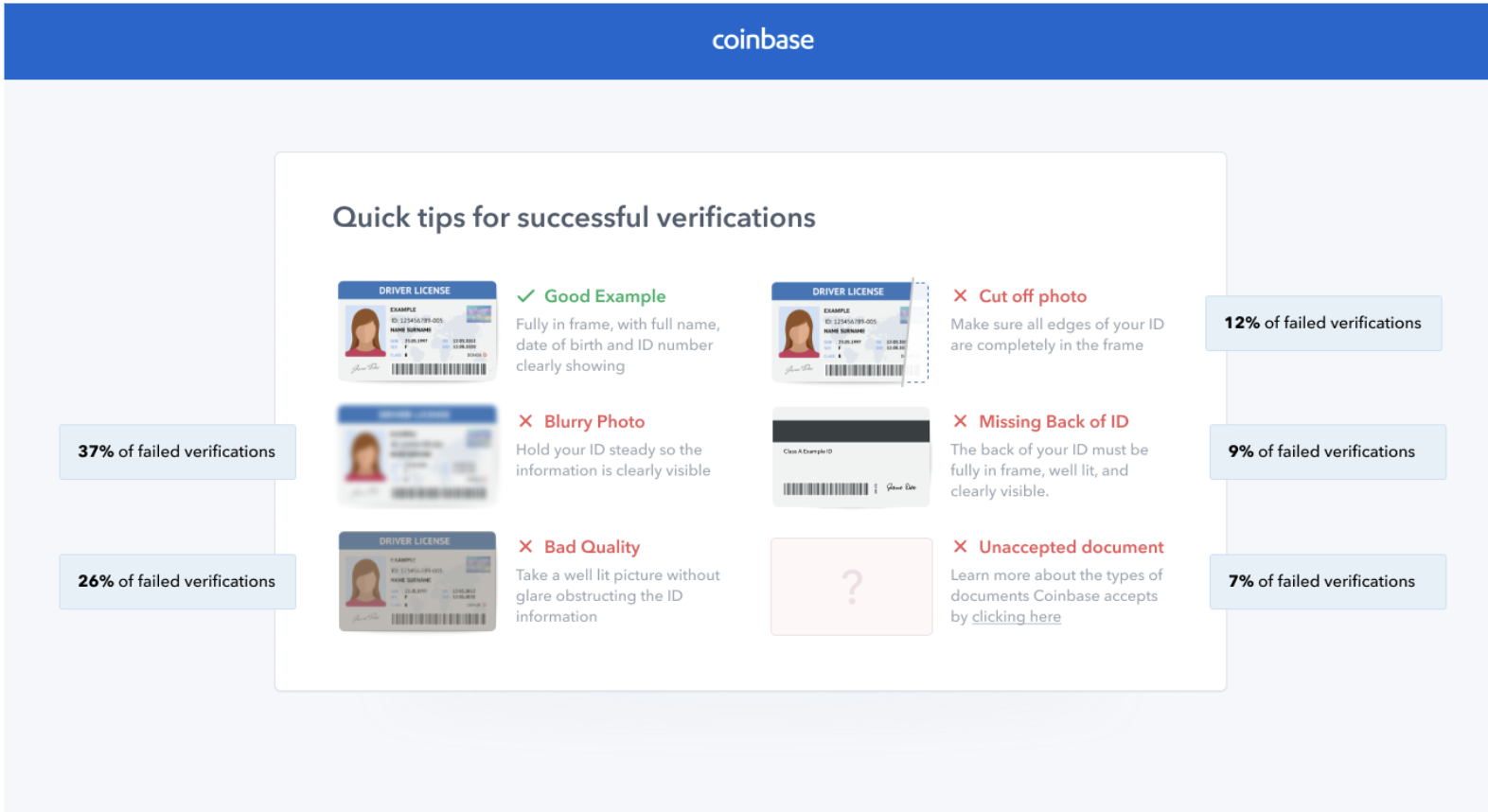
Foreign national IDs
Refer to the list of supported identity verification documents as acceptance varies by country.
Live selfie
Take photos with indirect natural light and avoid glare by turning off the flash.
Verification email
If you don’t receive the email:
Check your spam and promotional folders.
Clear your browser data.
Try using an alternate browser.
If the link in the email isn’t clickable, copy and paste it into a browser.
Make sure HTML is enabled in your email settings.
If you don't have a legal last name
If your legal name includes only one name and you don't have a last name, enter your legal name in the First Name field and a single dash (-) in the Last Name field, then continue with identity verification as normal.
Important
Don't leave the Last Name field blank.
Use only one dash (-) with no spaces or extra characters.
Make sure your name matches your government-issued ID.
Hosted identity verification pages
Some identity verification flows use identification.coinbase.com or another Coinbase-owned domain instead of staying fully inside the Coinbase app or on coinbase.com. This is expected for some flows, including verification started during account recovery or requested by certain Coinbase products or partners.
If you encounter issues on a hosted page:
Confirm the URL starts with https://identification.coinbase.com or another Coinbase-owned domain that ends in .coinbase.com.
Do not complete verification if the page is on a non-Coinbase domain, even if it uses Coinbase branding.
Avoid refreshing the page repeatedly; instead, follow any on-screen instructions.
If you see a generic error, close the tab, then return to Coinbase or the product that requested verification and restart the process from there.
Do not use outdated bookmarks or old links from previous verification attempts.
Session expiration
For security reasons, hosted identity verification sessions are time limited and one-time use. If too much time passes, you close the page, or you try to reuse an old link, QR code, or email, the session may expire.
If your session expires:
You may see a message that the session is no longer valid or has expired, or you may be sent back to the start of the flow.
Close the hosted page or browser tab.
Return to Coinbase or the original product (such as account recovery or a partner site) and start identity verification again from there.
Do not reuse old verification emails, QR codes, or bookmarked URLs; always start a fresh attempt.
If a session appears to expire immediately each time:
Check your internet connection and try again from a stable network.
Temporarily disable aggressive VPNs, content blockers, or privacy extensions that might interfere with the verification page.
If issues persist after multiple fresh attempts and waiting through any cooldown, contact Coinbase Support and share any error messages you see.
Cross-device QR code issues
If you use a QR code to move verification from desktop to mobile and run into issues, use the tips below.
QR code does not scan
Increase the brightness on your desktop or laptop screen so the code is clear.
Move your phone closer or farther away until the QR code is in focus.
Clean your desktop or laptop screen and your phone’s camera lens to remove smudges or glare.
Try your device’s default camera app first; if it does not recognize the code, use a trusted QR-scanning app.
QR code scans but the link does not open
Make sure your phone has an active internet connection.
When a banner appears, check that the URL preview ends in .coinbase.com before opening it.
If nothing happens when you select the banner, open your mobile browser manually and scan the QR code again.
Temporarily disable content blockers or strict browser privacy settings that might prevent the page from loading.
Camera issues on mobile after scanning the QR code
Allow camera permissions when your browser or the verification page asks for access.
Close other apps that might be using the camera in the background.
Force close and reopen your browser, then rescan the QR code from your desktop or laptop.
Restart your phone if the camera remains unavailable.
If you are still unable to complete verification with the QR option, try starting identity verification directly on your mobile device without using QR, or follow the other troubleshooting steps in this article before contacting Support.
Contact us
If issues persist, contact Coinbase Support and have the error details ready.
Before contacting Support:
Check Coinbase status for known issues.
Make sure your personal information is complete.
Have clear ID images ready for secure upload.
Use a separate device for ID verification, as your phone's camera won't work during calls.
Related articles: